Appearance
Credentials
Most useful workflows talk to something outside Aerini: Slack, GitHub, an AI provider, your own SMTP server. That means API keys and tokens. This page covers where those live, how to add one, and how each node actually gets hold of it.
If you haven't read Concepts yet, do that first. It defines "node" and "workflow," which this page assumes you already know.
What a credential is
A credential is one saved secret (a key, token, or password) that you can reuse across any node in any workflow instead of retyping it every time. Aerini encrypts every credential with AES-256-GCM before writing it to disk, and the encryption key itself lives in your operating system's credential manager (Keychain on macOS, Credential Manager on Windows, Secret Service on Linux), not in a plain file next to your workflows. Nothing you save here is sent anywhere. Aerini has no servers and no account system to send it to.
That's the desktop app. Running unattended on a server is different, covered near the bottom of this page.
Opening Credentials
Click Credentials in the toolbar. This opens a panel listing everything you've saved, each with a name, a type, and a note showing whether any workflow currently uses it.
Adding a credential
Click Add a credential (or, if this is your first one, Add your first credential) at the bottom of the panel and fill in:
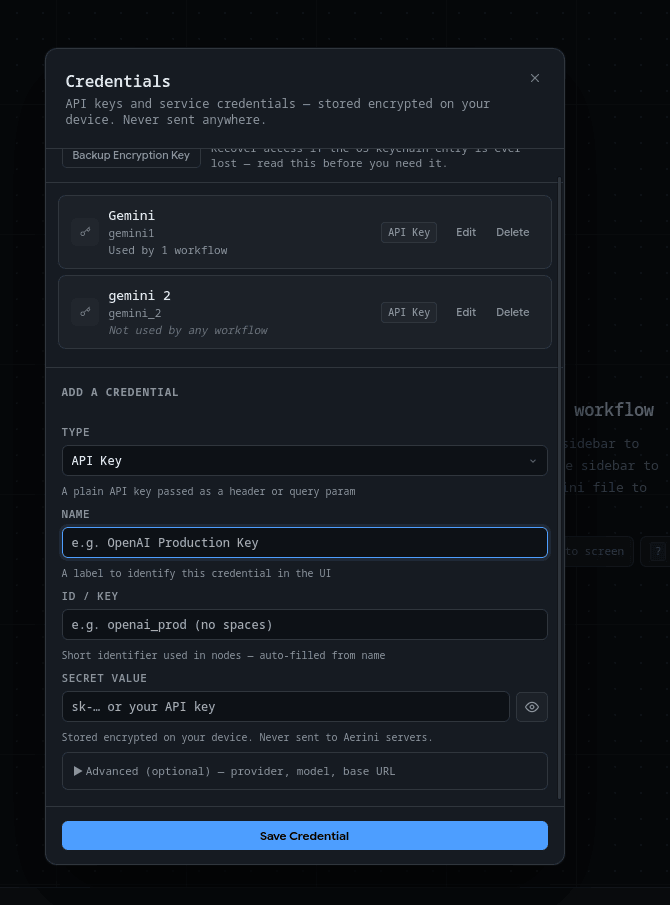
- Type: pick the shape of the secret. This mostly helps you and other people reading your credential list remember what it's for:
- API Key: a plain key sent as a header or query parameter
- Bearer Token: sent as
Authorization: Bearer <value> - Basic Auth: enter as
username:password - OAuth Token: an OAuth access or refresh token
- Other / Custom: anything else
- Name: a label for your own reference, like "OpenAI Production Key."
- ID: a short identifier used internally to attach this credential to a node. It's auto-filled from the name (lowercased, spaces turned into underscores) but you can edit it before saving. Letters, numbers, underscores, and hyphens only, up to 128 characters. You can't change it later, so if you need a different ID, delete the credential and add it again.
- Secret Value: the actual key or token. Click the eye icon to reveal it while typing. A saved secret is never shown again. Required for every Advanced Provider value except one: if Advanced Provider (below) is set to
local, this field is optional — see Local Models.
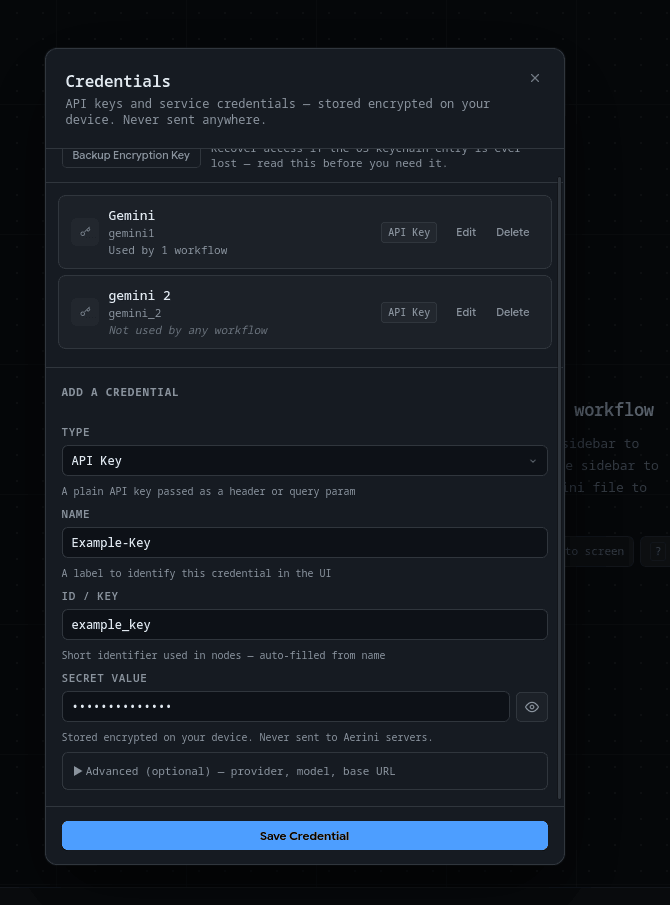
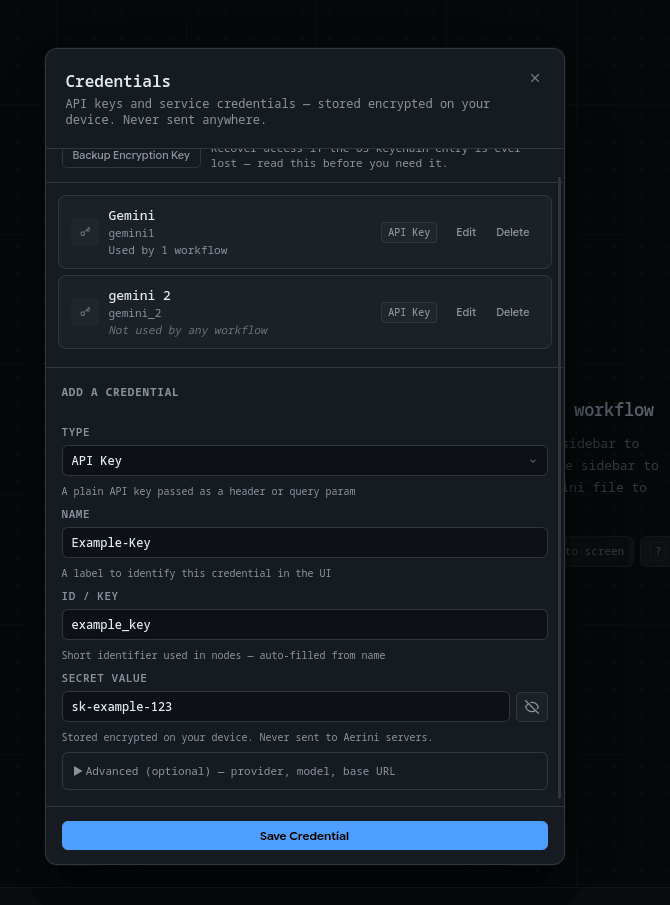
An Advanced section lets you optionally record a provider, model, and base URL alongside the secret. These aren't secret themselves, they exist so that when you later pick this credential on an AI node, Aerini can fill in matching fields for you automatically. Next to Model, a Fetch Models button queries that provider's /models endpoint using whatever Provider, Base URL, and Secret Value are currently in this form, and offers a dropdown of what it finds — typing a name directly always still works if the fetch fails. More on that below.
Click Save Credential. That's it: the credential now shows up in the panel and is available to every workflow.
Viewing, editing, and deleting
Click Edit on any saved credential to change it. The secret is never loaded back into the window: Secret Value shows "(unchanged)", and leaving it blank keeps the saved secret. Type a new value to replace it. The name, type, secret and Advanced fields can be edited; the ID can't. Saving a new credential with an ID that already exists is refused instead of overwriting it.
Click Delete to remove one. If any workflow still references it, Aerini refuses and tells you which workflow(s) are using it, so you won't accidentally break a node without knowing why. Delete or reassign the credential on those nodes first, then delete it. It also refuses when a workflow can't be read, since Aerini can't tell whether that workflow uses it.
Using a credential in a node
Open a node's settings and look for a Connection section. If the node has one, it shows a Use Saved Credential dropdown listing every credential you've saved, filtered by type only if that specific field requires one (most don't, so you'll usually see your full list) — except on AI Prompt, AI Agent, and Image Generation, which filter differently; see AI nodes: auto-fill and one-off keys below. Pick one and the node uses it at run time. The secret itself is never written into the workflow file; only the credential's ID is, and that ID is resolved back to the real value the moment the workflow runs.
Here's the part that trips people up: not every field described as "resolved from Connections" actually gets a dropdown. Only a field named api_key or password, or one the node marks as a credential field (S3 Secret Access Key, and Client Secret on Google Sheets and Social Upload), gets the picker. Everything else on a node, however it's labeled, is a plain text box you type into directly, and whatever you type is saved in the workflow file unencrypted. This is a real gap between how a few node descriptions read and how the picker currently works, not something you're doing wrong.
Here's how it breaks down across the nodes people connect credentials to most:
| Node | Credential field(s) | How you fill it in |
|---|---|---|
| Slack | api_key (Bot Token) | Saved Credential dropdown |
| GitHub | api_key (personal access token) | Saved Credential dropdown |
| Notion | api_key (integration token) | Saved Credential dropdown |
| Telegram | api_key (Bot Token) | Saved Credential dropdown |
| SendGrid | api_key | Saved Credential dropdown |
| Stripe | api_key (secret key) | Saved Credential dropdown |
| Send Email | password (paired with a plain username field) | Saved Credential dropdown |
| Database (Postgres, MySQL, Redis) | password (replaces any password written in the Connection URL) | Saved Credential dropdown |
| AI Prompt, AI Agent, Image Generation | api_key | Saved Credential dropdown, plus a one-off unencrypted option (see below) |
| HTTP Request | api_key | Saved Credential dropdown, combined with an Auth Mode setting (see below) |
| Discord | webhook_url | Typed directly into the node, no credential store involved |
| S3 Storage | access_key_id, secret_access_key | secret_access_key via dropdown or typed directly; access_key_id typed directly |
| Google Sheets | api_key (raw access token), or client_id + client_secret (OAuth app) | api_key and client_secret via dropdown (client_secret can also be typed directly); client_id typed directly |
| Social Upload | client_id, client_secret | client_secret via dropdown or typed directly; client_id typed directly |
For Discord and the fields marked "typed directly", there's nothing wrong with typing the value straight into the node. It's just worth knowing it isn't encrypted the way a saved credential is, since it lives in the workflow's .aerini/.json file in plain text. Where a node offers both, Or enter a value directly sits under the dropdown, and a selected saved credential wins.
A saved credential can fill only a node's credential fields: api_key, password, or a field the node type marks as a credential. A workflow that wires one into any other field, such as a URL or headers, makes that node fail with CREDENTIAL_FIELD_NOT_ALLOWED. If the credential no longer exists, the node still runs with the field empty and the run log says so. If it exists but can't be read (damaged, or the encryption key doesn't match it), or the credential store can't be reached, the node fails instead of running without it.
After a run, any saved credential value, and any value typed into an api_key or password field, an S3 Secret Access Key, a Google Sheets or Social Upload Client Secret, or a field a plugin node marks x-aerini-credential, of 8 or more characters is replaced with [redacted] in the run's outputs, logs, error messages and the error a failed run returns, so a node that echoes its input can't write the secret into run history. This is an exact-text match, extended to the URL-encoded and Base64 forms of the value: a secret a node has split or hashed isn't recognised.
HTTP Request's Auth Mode
The HTTP Request node's Connection section includes an Auth Mode selector that controls how your saved credential's value gets attached to the request:
- Bearer Token:
Authorization: Bearer <value>(the default) - API Key Header: sent under a header name you choose (defaults to
X-API-Key) - Basic Auth: base64-encoded. If your saved value already contains a colon (
user:pass), it's used as-is; otherwise it's sent with an empty username, as:<value>. - None: the credential is ignored and no
Authorizationheader is added
Pick whichever one matches the API you're calling. If you're not sure, check that API's own documentation.
AI nodes: auto-fill and one-off keys
AI Prompt, AI Agent, and Image Generation all read a provider, model, and base_url alongside api_key. When you pick a saved credential that has Advanced metadata filled in (see Adding a credential above), Aerini copies that provider, model, and base URL into the node automatically, but only into fields that are still blank. It never overwrites something you already typed.
On these three node types, the Use Saved Credential dropdown is also filtered to match: it only lists credentials whose Advanced Provider is the same as the Provider currently selected on the node, plus any credential with no Provider set at all (those are always shown, since Advanced metadata is optional). While the node's Provider is auto, nothing is filtered, because the provider isn't decided until the node runs. Each matched credential shows its provider next to its name, e.g. "My Key — Anthropic", so you can tell them apart at a glance. If nothing matches, the dropdown is empty and the warning below it names the provider it's short a credential for — use Or enter a key directly below, or add a matching credential from the Credentials panel. Changing the node's Provider re-filters the list immediately.
These three node types also offer Or enter a key directly, an inline field for a one-off API key. It's stored in the workflow file unencrypted and is ignored the moment you pick a saved credential instead. Use it for quick testing, not for anything you'd mind someone else seeing if they opened the workflow file.
Running a local model instead of a hosted API (Ollama and similar) is covered in Local Models. For now, base_url on these nodes accepts loopback and private-network addresses, which a hosted API's base URL normally can't.
OAuth
Four integrations use real OAuth 2.0 instead of a pasted key: YouTube, Instagram, and TikTok (all through the Social Upload node), plus Google Sheets. Aerini runs the whole exchange itself: it opens your browser to the provider's login page, listens on http://127.0.0.1:42069/callback for the response, and stores the resulting tokens in your OS keychain, refreshing them automatically before they expire.
The sign-in waits 60 seconds for the response and ignores anything else that reaches that port (a stray request, or one with the wrong state), so it only ends on your login, a refusal (reported with the provider's reason), or the timeout. Two workflows that need the same login at once share a single sign-in. A refresh that fails for a passing reason (network error, provider outage, rate limit) keeps your stored tokens and fails that run with a retryable error; only a provider rejecting the stored credential (for example a revoked grant) discards it and starts a new sign-in. If the keychain refuses to save tokens (common on a headless Linux box), the run still works, a warning is logged, and the next run signs in again. Signing in needs a desktop and a browser on the machine running the workflow, so on a headless server sign in on the desktop app first.
YouTube, Instagram, TikTok
On a Social Upload node, open its Platform Setup section and click Open Setup Guide. It walks through each platform's developer console step by step: which product to enable, where to find your Client ID and Client Secret, and the exact redirect URI to register (it reads the live port Aerini will actually use, and warns you if 42069 is already taken by something else on your machine). A few things worth knowing going in:
- Instagram requires your media to already be hosted at a public URL. Social Upload can't hand it a local file directly: upload to a CDN or web host first, and put that
http(s)URL in the file'sdatafield. - TikTok apps start in sandbox mode: posts are private and visible only to your own account until the app passes review.
- YouTube apps start in Google's "Testing" status, capped at whatever test users you've added, until you submit for verification.
Once you have a Client ID and Client Secret, paste them directly into the node's Client ID and Client Secret fields. Type the Client ID in. For the Client Secret, either pick a saved credential or type it under Or enter a value directly. Aerini handles the OAuth flow the first time the node runs.
Google Sheets
Google Sheets doesn't have its own setup guide button, but it uses the same OAuth machinery as YouTube. In the Google Cloud Console, enable the Google Sheets API instead of YouTube Data API, and request the https://www.googleapis.com/auth/spreadsheets scope instead of a YouTube upload scope. Everything else, the OAuth consent screen, the redirect URI (the same 127.0.0.1:42069/callback), creating a Desktop app OAuth client, works the same way the YouTube steps in the Setup Guide describe.
You have two options on the node itself:
client_id+client_secret(recommended): Aerini stores and refreshes the token automatically, so you authorize once.api_key, a raw access token pasted straight in: quicker to set up, but it expires after about an hour with no automatic refresh, so you'd be replacing it constantly. Use this only for a quick one-off test.
If you set client_id, also set client_secret, and vice versa. Setting only one is treated as a mistake and the node will tell you so rather than silently falling back to the api_key field.
Running headless: aerini-server and environment variables
Everything above describes the desktop app. If you export a workflow to run unattended with aerini-server, credentials work differently: the server doesn't read your encrypted credential store at all. Instead, it reads environment variables.
Each credential ID maps to a variable named AERINI_CRED_<ID>, with the ID uppercased and anything that isn't a letter or digit turned into an underscore. A credential with ID openai-prod becomes AERINI_CRED_OPENAI_PROD. If a required variable isn't set, is set to an empty value, or isn't valid Unicode when the server starts, it fails immediately and says which of the three it is for each variable, rather than running with a silently broken node.
The server reads only the variables listed in the package's credential_env_vars mapping, and every name in it must start with AERINI_CRED_. Two credential IDs that would share one variable, such as a-b and a_b, make the export fail and the server refuse to start, naming both IDs. Rename one of them in the Credentials panel.
You don't have to work out these names by hand. When you export a workflow for server deployment, Aerini scans it for every node that uses a saved credential and generates the matching environment variable names for you, along with a .env.example file listing exactly what to set before you start the server.
One catch, worth repeating from earlier: this scan only catches fields wired to a saved credential (the "Saved Credential dropdown" rows in the table above). A Discord webhook URL, S3 keys, or a Google Sheets/Social Upload client_id/client_secret you typed directly aren't saved credentials, so they aren't converted to environment variables either. They're exported straight into the workflow JSON as plain text, along with everything else in it. Treat an exported package containing those fields as sensitive, the same as you'd treat the original workflow file.
Full deployment steps (starting the server, the status page, ports, and the rest) are covered in Deploying aerini-server.
Backing up your encryption key
Every credential is encrypted with one AES-256 key, normally stored in your OS keychain. If that keychain entry is ever lost (OS reset, migrating to a new machine, a Linux setup with no keychain running), there's no way to decrypt your saved credentials again, unless you've backed up the key yourself beforehand.
In the Credentials panel, click Backup Encryption Key. Aerini asks you to confirm in a system dialog, since anyone holding this value can decrypt everything in your credential store, then shows it for 60 seconds. If you copy it, the clipboard is cleared after 60 seconds. Copy it into a password manager, not a plain text file on the same machine. If you ever do lose the keychain entry, restoring from this backup is what lets Aerini decrypt your existing credentials again instead of starting from a blank store.
If Aerini can't read the key
When credentials are saved and Aerini can't get the key (you clicked Deny on the macOS Keychain prompt, the keychain is locked, or its entry is gone), Aerini shows an error and closes instead of starting. It never creates a replacement key while saved credentials exist, because a new key can't decrypt them, and new credentials would then be encrypted with a different key than the old ones. Nothing is deleted or changed.
- macOS, access denied or prompt dismissed: open Aerini again and choose Always Allow when macOS asks for Keychain access.
- Keychain locked or not running: unlock or start it, then open Aerini again.
- Keychain entry lost: save the key from your backup, exactly as it was shown, into a file named
.cred.keyin Aerini's data folder, then open Aerini. It moves the key back into the keychain and deletes the file. - Headless server (
apimode): stop the server and runaerini-server restore-key --key-file <backup file>, adding--keychainif you start the server with it. See the CLI reference. - The key doesn't match your credentials: Aerini checks the key against a value stored with your credentials before it reads any of them. If the key it found decrypts none of them, it stops with a message saying so, and nothing is changed. This can happen when a stale key file or keychain entry survives a restore or a copy of the data folder. Put the key from your backup in place, as in Keychain entry lost above, after removing the keychain entry or key file that holds the wrong key.
- Key file and keychain hold different keys: if a
.cred.keyfile sits next to a working keychain entry and the two keys differ, Aerini stops rather than guess which one encrypted your credentials. Delete the.cred.keyfile if the keychain key is the right one, or delete the keychain entry if the file is.
A fresh install, or a store with no saved credentials, isn't affected: Aerini creates its key the first time it runs.
Each credential is encrypted together with its ID and type, so a stored secret copied onto another credential, or a credential whose type was changed outside Aerini, no longer decrypts and fails the node that uses it, as an unreadable credential does. Credentials saved by earlier versions are rewritten in this format the first time a workflow reads them, and from then on an older version of Aerini cannot read them. Back up the data folder before updating if you may go back.
aerini-server in api mode keeps its key in the file aerini.key in the data folder (--data-dir). Back that file up with the rest of the folder; the server has no request that returns the key, because a token with the admin scope would then be able to read every credential.
A build for a platform without a native keychain (anything other than Windows, macOS, Linux, FreeBSD and OpenBSD) keeps the key in the file .cred.key in the data folder and logs a warning at start-up. Back that file up and keep it private. If Aerini is stopped between writing the key and renaming it into place, a small .tmp* file holding the key can stay in that folder; Aerini removes such files once they are 10 minutes old.
Each data folder has its own keychain entry, so two copies of Aerini that use different data folders never share or overwrite a key. A folder that already holds credentials from an earlier version keeps working: Aerini copies the key from the older shared entry into the folder's own entry the first time it starts, after checking that it decrypts your credentials, and leaves the shared entry in place.
See also
- Concepts, for what a node and a workflow are
- Nodes reference, for every field on every built-in node
- Expressions, for wiring one node's output into another
- Security, for the full encryption and key-recovery model