Appearance
Version History
Aerini keeps a running history of past saves for every workflow, so you can see what changed, compare against an earlier point, or roll back entirely. This page covers opening that history, the difference between an automatic snapshot and a named one, and what Compare, Restore, and Delete actually do.
If you haven't read Concepts yet, do that first for what a workflow and a save are. This page assumes you already know those.
Opening Version History
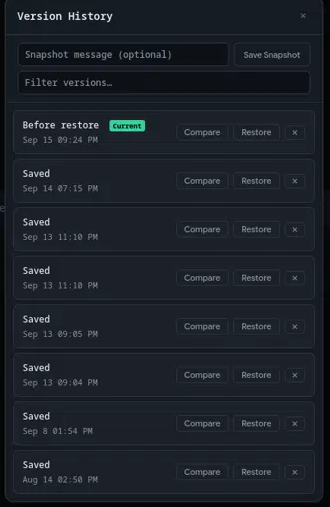
Click the clock icon in the toolbar (tooltip: Version history). It opens as a panel over the canvas, listing every saved snapshot for the workflow you currently have open, newest first.
Every save is a snapshot
You don't have to do anything extra to build a history. Every time you save the workflow, whether with Ctrl+S (Cmd+S on macOS), the Save button, or automatically right before a background run starts, Aerini records the canvas as it stood at that moment. These automatic entries show up in the list as Saved. If the canvas is identical to the last snapshot already on file, nothing new is recorded, so saving repeatedly with no actual changes doesn't pad the list with duplicates.
The top entry in the list carries a Current badge whenever it matches what's on your canvas right now, meaning you have no unsaved changes. A small dot in the panel's header lights up when you do.
Saving a named snapshot on purpose
Automatic snapshots are unlabeled by design; if you want a marker you can find later, type a short note into the Snapshot message (optional) field at the top of the panel and click Save Snapshot. This captures the canvas exactly as it stands right now, unsaved changes included, without needing you to press Save first. It only refuses if the workflow has never been saved at all yet: save it once, then a named snapshot has something to attach to.
Once you have more than a handful of entries, a Filter versions… box appears above the list so you can search by message or date.
Comparing a version against your current canvas
Click Compare on any entry to see exactly what's different between that snapshot and whatever is on your canvas right now, not between two arbitrary past versions. The diff panel that opens lists every node and connection that was Added, Removed, or Changed, and for anything changed, the specific fields that differ, old value on the left, new value on the right.
Restoring a version
Click Restore. Aerini asks you to confirm, since it's about to overwrite whatever's on your canvas, then loads that snapshot's nodes and connections in place of what's there now. Two things worth knowing:
- Before it restores anything, Aerini automatically saves your current canvas as its own snapshot labeled Before restore, so restoring is never a one-way trip: the state you restored from is still in the list afterward.
- Restoring loads the old version onto the canvas but doesn't save it for you. The workflow shows as having unsaved changes until you save again, so you can double-check it before committing.
Deleting a version
Click the × on any entry to remove just that one snapshot from the history. Aerini asks you to confirm first: deleting is permanent, and unlike Restore there's no automatic safety snapshot taken beforehand, since nothing on your canvas is being touched.
How much history is kept
Aerini keeps up to 50 snapshots per workflow. Past that, saving a new one automatically drops the oldest to make room; there's currently no setting to raise or lower that number.
See also
- Concepts, for what a workflow and a save are
- Getting Started, for saving a workflow for the first time
- Background Runs, for how a scheduled or webhook run triggers its own automatic snapshot